If you have ever clicked Submit on a NUPCO bid and watched nothing happen, you are not alone. The NUPCO supplier portal at tenders.nupco.com is built on a SAP framework that predates the modern web, and modern browsers — Chrome, Firefox, and even Microsoft Edge in its default configuration — cannot complete the submission flow. The fix is a one-time configuration in Edge that takes about three minutes. This guide walks through the exact steps, with screenshots from a real Edge session, and covers the one renewal trap that catches suppliers off guard every month.
Why NUPCO Submissions Fail in Modern Browsers
The NUPCO Supplier Relationship Management portal runs on SAP NetWeaver, a platform that was designed when Internet Explorer was the dominant enterprise browser. Several parts of the bid workflow — file uploads, popup confirmations, and the Submit action itself — rely on legacy script behavior, ActiveX-style components, and document modes that only the original Internet Explorer engine ever fully supported.
Microsoft retired Internet Explorer 11 in mid-2022. Since then, suppliers who tried to submit bids on Chrome, Firefox, or Safari have hit dead ends: Submit buttons that do nothing when clicked, file dialogs that never open, login flows that loop without ever landing on the dashboard. Microsoft Edge in its default mode behaves the same way — its Chromium engine cannot render the SAP portal correctly.
The symptom most suppliers describe is the same. The page loads, you complete the bid form, you click Submit, and nothing happens. No error message, no confirmation, no progress. The deadline ticks closer, and the bid never leaves your screen.
What Internet Explorer Mode Does
Microsoft Edge ships with a feature called Internet Explorer mode, or IE mode. It exists for exactly this situation: enterprise systems built before the modern web that have not yet been migrated to current standards. Government portals, supplier registration systems, banking back offices, and legacy ERPs all fall into this category.
When you mark a site for IE mode, Edge loads that one site using the Trident engine — the same rendering engine that powered Internet Explorer — instead of its default Chromium engine. Everything else in your browser stays the same: your bookmarks, your sign-in, your downloads, your other tabs. Only the page you marked renders in compatibility mode.
IE mode is fully supported by Microsoft and is the recommended path for any organization still using legacy web applications. Once configured, you continue using Edge normally, and tenders.nupco.com simply works.
Configure Edge Step by Step
The configuration takes one pass through Edge settings. You need administrator rights on your machine if your organization uses managed Edge policies; on a personal device the steps work without any special permissions.
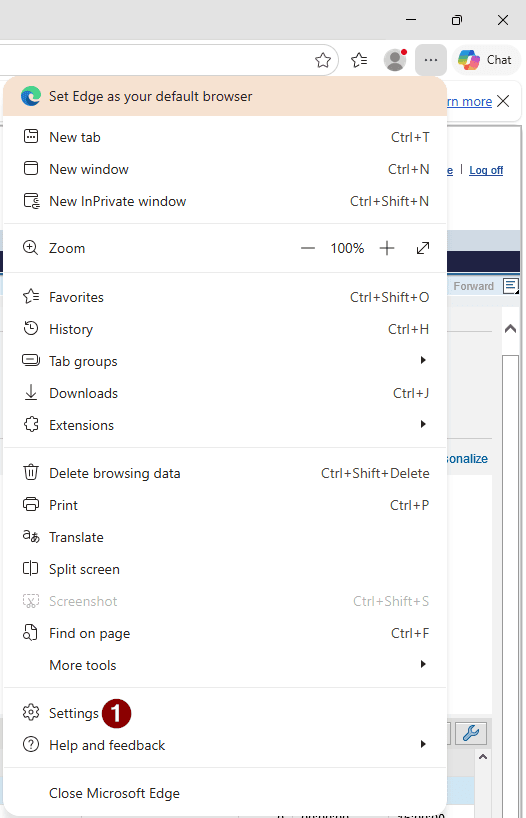
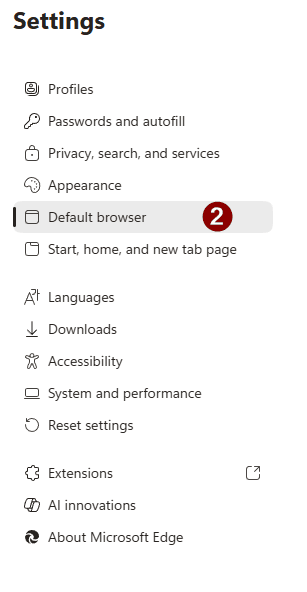
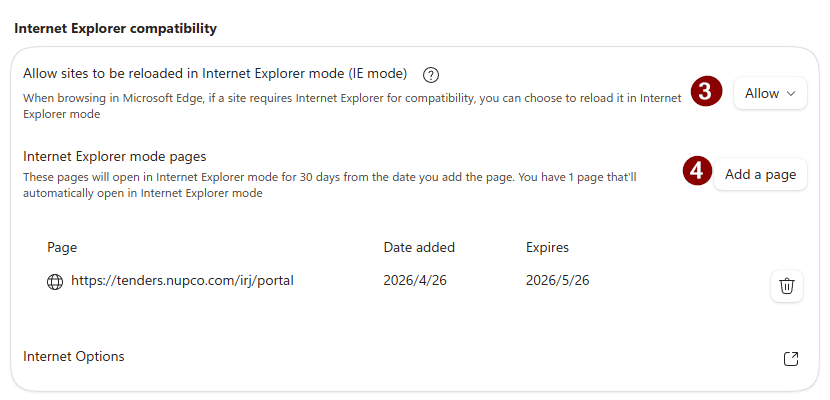
First, open the Edge menu by clicking the three-dot button at the top right of the browser, then choose Settings. Second, in the settings sidebar, choose Default browser. Third, in the Default browser pane, scroll to the Internet Explorer compatibility section. Set the dropdown labelled Allow sites to be reloaded in Internet Explorer mode (IE mode) to Allow. Click the Add a page button, paste the URL https://tenders.nupco.com/irj/portal, and confirm. When Edge prompts you to restart the browser, click Restart.
The screenshots below show each stage of the configuration on a clean Edge install.
Confirm the Setup Works
After Edge restarts, navigate to https://tenders.nupco.com/irj/portal. You should see two visual confirmations that IE mode is active. A small Internet Explorer logo appears in the address bar to the left of the URL. A thin banner across the top of the page reads You're in Internet Explorer mode. Most websites work better in Microsoft Edge.
Log in with your supplier credentials as you normally would. Navigate to your bid, fill in the required fields, and click Submit. The submission should complete and return a confirmation reference number. If you have access to a previously failed submission, retry it now — most failed submissions can be re-opened and resubmitted once IE mode is active.
If the IE mode banner does not appear when you load the portal, the URL may not have been added correctly. Return to Settings, then Default browser, then Internet Explorer compatibility, and check the page list. The entry must read exactly https://tenders.nupco.com/irj/portal — extra slashes, missing protocol, or different subdomains will not match.
The 30-Day Renewal You Cannot Miss
There is one detail Microsoft does not advertise loudly. Pages added to IE mode through this method expire automatically after 30 days. The expiry date is shown in the page list — in the screenshot above, the entry expires 30 days after it was added. After expiry, Edge silently stops rendering the page in IE mode, and your submissions start failing again exactly the way they did before you ran the setup.
The failure mode is particularly painful because it is silent. There is no warning, no notification, no banner explaining what changed. You open Edge to submit a bid before the deadline, click Submit, and nothing happens. By the time you realize the IE mode entry expired and re-add it, you may have lost critical hours.
The fix is simple. Set a recurring calendar reminder every 28 days to re-open Edge settings and re-add tenders.nupco.com. The re-add resets the 30-day timer. If your team has multiple users who submit on NUPCO, designate one person to maintain the IE mode setting on each machine, or include the renewal in your monthly compliance checklist alongside document expiry checks.
When Submissions Still Fail
If you have configured IE mode correctly and the page loads in compatibility mode but submissions still fail, work through this short checklist.
Confirm that popups are allowed for tenders.nupco.com. Several stages of the bid workflow open in popup windows; if popups are blocked, the Submit action appears to do nothing. Clear cookies for the NUPCO domain and log in fresh — stale session cookies cause silent failures more often than people expect. Temporarily disable third-party browser extensions, especially ad blockers and privacy extensions, while submitting; some of them break the SAP frame layout in ways that prevent form submission.
If your organization manages Edge through Group Policy, the Allow option for IE mode may be locked. Contact your IT team and ask them to push the IE mode entry centrally for tenders.nupco.com — Microsoft provides an enterprise IE Mode Site List configuration specifically for this purpose, and it does not have the 30-day expiry that user-added entries do.
Finally, IE mode is a Windows-only feature. Microsoft Edge for macOS and Edge for Linux do not include it, and there is no workaround on those platforms. Suppliers running on Mac or Linux must keep a Windows machine — or a Windows virtual machine — for NUPCO submissions.
Tender Search alerts you the moment a NUPCO tender matches your product catalog, so you have full preparation time before the deadline rather than scrambling at the last hour. Combined with proper Edge configuration, you keep submission failures out of the picture entirely. Start your free trial and see your next NUPCO match.
Start Free Trial